


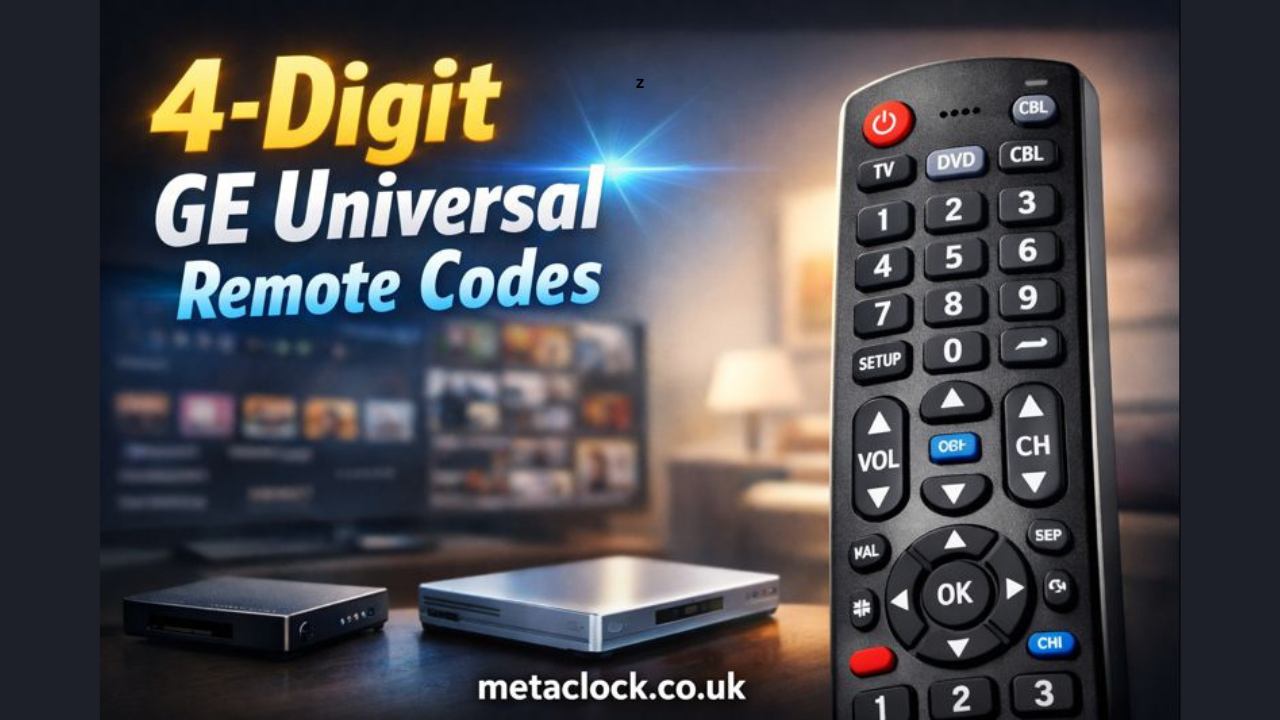
A GE universal remote offers a cost-effective and straightforward way to control all your home entertainment devices with a single controller. Rather than keeping track of multiple remotes, one GE remote can operate your TV, DVD player, cable or satellite box, and other electronics—provided it is set up with the correct 4-digit GE universal remote codes. In this article, we’ll explain how these codes function, guide you through the programming process, and share practical troubleshooting tips to ensure all your devices respond smoothly and reliably.
Introduction to GE Universal Remote Codes
Universal remotes, such as those made by GE, use numeric codes to control different brands and types of devices. Each device may respond to one or more 4-digit GE universal remote codes, which instruct the remote to send the correct infrared (IR) signals to that equipment. These codes effectively replace the original manufacturer’s remote, allowing you to control nearly all device functions from a single universal controller. The codes are organized by device type, such as TVs, DVD players, cable or satellite boxes, auxiliary devices, and more.
Knowing and finding the correct code is essential; without it, your remote won’t operate the device properly. This guide will walk you through using these codes, show you how to program your remote, and provide a wide range of standard brand codes so you can set up your system quickly and confidently.
How 4-Digit GE Universal Remote Codes Work
Every electronic device that works with an IR remote has its own set of infrared commands, and a universal remote like GE’s needs to match those commands to function correctly. A 4-digit GE universal remote code acts as a simple reference to a brand’s specific IR protocol. Entering the correct code into your GE remote allows it to communicate seamlessly with your device.
For instance, if Sony makes your DVD player and uses IR code 0986, your GE remote will transmit signals in that exact pattern whenever you press the volume, play, or other function buttons. Some brands have several codes because different models or features may require distinct IR signals. If the first code doesn’t work, you can try the next one on the list until you find the right match.
List of 4-Digit GE Universal Remote Codes
Here are 4-digit GE universal remote codes for popular device brands. While this list doesn’t cover every possible code, it includes many commonly used device codes and provides a solid starting point for programming your remote.
Typical 4-Digit Codes for Devices
- For AIWA devices, the corresponding 4-digit GE universal remote code is 0414.
- For BOSE devices, the 4-digit code for a GE universal remote is 0672.
- For EMERSON devices, the GE universal remote uses the 4-digit code 0940.
- For LG devices, the 4-digit code to program a GE universal remote is 0972.
- For MAGNAVOX devices, the GE universal remote can be programmed using either 0915 or 0969 as the 4-digit code.
- For PHILIPS devices, you can program a GE universal remote using either 0755 or 0969 as the 4-digit code.
- For PIONEER devices, the GE universal remote can be set up using either 0976 or 0968 as the 4-digit code.
- For RCA devices, the GE universal remote can be programmed using either 0449 or 0920 as the 4-digit code.
- For SAMSUNG devices, you can program a GE universal remote using either 0454 or 0942 as the 4-digit code.
- For SONY devices, the 4-digit code to program a GE universal remote is 0986.
These codes represent only a subset of the GE universal remote code list; user manuals often include dozens or even hundreds of codes organized by device type and brand.
Keep in mind that some brands and specific devices may have additional 4-digit codes. For instance, certain Samsung receivers or Sony boxes may use codes like 0619 or 0623 within the larger universal remote code list.
How to Program a GE Universal Remote Using 4-Digit Codes
Setting up your GE universal remote using a code is simple, as long as you follow the steps outlined below.
- Turn on the Device: Make sure the device you want to program, such as your TV or DVD player, is powered on.
- Press and Hold Setup: Press and hold the “SETUP” button on your GE remote until the red indicator light remains steady.
- Select Device Type: Press the button for the device type you want to program, such as TV or DVD. The indicator light will flash once, then remain on.
- Enter the 4-digit code: Using the number keys on your GE remote, enter the first 4-digit code for your device. The indicator light will turn off to confirm that the code has been accepted.
- Test the Remote: Aim the remote at your device and press the power button. If the device turns on, the programming was successful. If it doesn’t respond, try thefollowingt code on the list and repeat the process.
This approach, called Direct Code Entry, is usually the quickest way to set up your remote.
Auto Code Search Method
If you’re unsure of the correct 4-digit GE universal remote code, or if your device isn’t on the list, the remote offers an auto-code search feature that cycles through all stored codes until it finds the right one. Here’s how to use it:
- Power on the device: Make sure the device you want to program is switched on.
- Press and hold “SETUP”: Hold the “SETUP” button on your remote until the indicator light remains steady.
- Choose the device type: Press the button for the device you want to program, such as TV or DVD.
- Press the “POWER” button repeatedly until the device powers off.
- Press “ENTER”: Hit the Enter button on your remote to save the code you just selected.
This process can take a few minutes, particularly if there are many codes to cycle through. Still, it’s a helpful method when you don’t know the exact code or if your device isn’t listed in the manual.
How to Find the Correct 4-Digit Code for Your Device
The best way to find GE universal remote codes is by consulting the user manual for your specific remote model, as it usually provides a detailed list of codes for a wide range of brands and device types. If your manual is no longer available, many online resources organize GE remote codes by brand and device, making it easier to locate the correct 4-digit code for your setup.
Whenever you consult a code list, be sure it corresponds to the specific model of your remote. Certain remotes, depending on their version number—such as CL3 or CL4—may require different codes, particularly for newer devices.
Troubleshooting GE Universal Remote Code Issues
Even with the correct code, you might encounter occasional programming issues. Here are several typical issues you might encounter, along with practical solutions to resolve them.
- Device Doesn’t Respond: If your device doesn’t react after entering a code, try thefollowingt code listed for that brand. Many brands provide multiple codes to ensure compatibility with different models.
- Buttons Partially Work: If only certain buttons respond—for example, the power works but the volume does not—trying other codes can often fix the problem, since different codes may enable additional functions.
- Remote Not Pairing: Make sure the batteries in your remote are fresh and that there’s a clear line of sight to the device, as obstacles can block or weaken the infrared signal.
If direct code entry doesn’t work, using the auto-search feature can help you locate a code that functions properly.
Tips for Successful Programming
- Start with Known Codes: Try the codes most frequently listed for your device’s brand.
- Test Multiple Codes: If the first code doesn’t work, don’t stop—try the other codes on the list until you find one that works.
- Write Down Codes: After you discover a code that works, record it so you can easily reprogram the remote later if needed.
Conclusion
Mastering and using GE universal remote codes—particularly the 4-digit codes—can make controlling your home entertainment setup much simpler. With the correct code, a single GE remote can replace multiple controllers, organize your devices, and give you easy access to all functions from one place. Whether you program it manually or use the auto-search feature, keep a list of codes on hand and try different entries if needed until you find the one that works perfectly for your device. With a bit of patience and the guidance in this article, setting up your GE universal remote can be quick, straightforward, and hassle-free.
Read More: AI Insights DualMedia: Driving Smarter Digital Intelligence.
